iPhone / iPad
A one-time $2.99 App Store purchase. Requires iOS or iPadOS 13.0 or later; check the listing for current requirements. Redownload with the Apple Account that bought it.
Choose the device you want to install it on, then check the store, system version, or installer architecture.
Current version v2.2.92 · Free for Mac, Windows, Android, and Linux; one-time $2.99 purchase for iPhone and iPad
2.2.92932747118Downloading for another device? Use the platform and architecture options below instead of the device-specific recommendation at the top of the page.
A one-time $2.99 App Store purchase. Requires iOS or iPadOS 13.0 or later; check the listing for current requirements. Redownload with the Apple Account that bought it.
Free. Requires macOS 12 or later. The two .dmg installers are for Apple silicon and Intel processors, respectively. Choose the one that matches your Mac; the choice isn’t based on whether it’s a laptop or desktop.
Not sure which one to choose? Open About This Mac and check Chip or Processor.
Free. A 64-bit x64 .exe installer is available. In Windows, open Settings → System → About and check System type to confirm your processor and system architecture. Let the browser finish downloading the file, then open it from your downloads.
Free. The arm64 .apk is suitable for most phones and tablets released in recent years with a compatible architecture. If your in-app browser can’t save the file, open this site’s download page in your device’s browser instead.
Free. These installers are for x86_64, which some distributions call amd64. Choose .deb for Debian / Ubuntu, .rpm for Fedora / openSUSE, or AppImage for other distributions.
The platform name on each button identifies the installer. If you see an architecture or system-version incompatibility message after downloading, return here and check your device rather than changing the file extension or bypassing the warning.
The desktop and Android installers aren’t code-signed, so your system may ask you to confirm during installation or first launch. Check your browser’s download history and confirm the file came directly from the matching platform folder under /dl/shadowrocket/ on this site, then follow the guidance below. Stop if the source is unclear, the file is incomplete, the system explicitly reports a threat, or your device is managed by your organization. Don’t disable system protections.
| Platform | Installation steps and system prompts |
|---|---|
| iPhone / iPad | Complete your purchase or redownload from the App Store product page. Open the app after its icon appears on your Home Screen. The App Store handles purchase confirmation; the system VPN configuration prompt that may appear when you first enable a connection is a separate setup step. |
| Mac |
Open the |
| Windows | Run the .exe downloaded from this site. If SmartScreen shows “Windows protected your PC” as an app reputation warning, select More info, verify the filename, then select Run anyway. Stop if Windows explicitly reports a threat or your organization’s policy doesn’t allow you to continue. After installation, open Shadowrocket from the Start menu. |
| Android | Open the .apk from your browser’s download history. If Android asks you to allow installation from unknown apps, grant the relevant permission only to the browser opening this file. You can turn it off after installation. If the app is reported as incompatible with your device, check the architecture and file integrity first; installation permissions don’t affect compatibility. |
| Linux |
In your downloads folder, open the |
If the client opens, installation is complete. If you already have your own subscription or server details, continue with the Quick Start. If import fails or a connection times out, first identify whether the problem is launching the client, importing details, or starting a connection. Reinstalling repeatedly may erase existing settings.
This section applies to iPhone and iPad only. The country or region of your Apple Account determines the App Store storefront you see when signed in. Shadowrocket isn’t available on the mainland China App Store. Seeing the US product page in a browser doesn’t mean your signed-in account can purchase from that storefront. Changing your device language, region, or network won’t change the storefront linked to your purchasing account.
On your device, open Settings → Apple Account → Media & Purchases → View Account → Country/Region. Some system versions label the account “Apple ID.” Follow the prompts to verify your identity, then check the current country or region. If you have a legitimate reason to change regions, Apple provides that option under Country/Region. Whether you can change it depends on your account status, payment details, and the requirements shown by the system.
If the app appears in the store but you can’t download it, check that the account used by the App Store matches the one shown under Media & Purchases. Then review the product page’s compatibility details, available device storage, and system restrictions. If you’ve already purchased the app, finding it in your purchase history is usually more reliable than identifying it among search results. For more account and purchase scenarios, see the App Verification Guide.
Open Shadowrocket’s App Store product page and check all three details below. App names and search rankings can be confusing, and a similar icon doesn’t mean it’s the same app. Verify all three together.
id932747118. If the name says Shadowrocket but the number in the URL is different, it isn’t the app linked here.
The US store price for a new purchase is a one-time $2.99; the Mac, Windows, Android, and Linux versions are free. If you’ve purchased it before, the correct store listing may show a cloud download icon. A similarly named store listing marked free isn’t this paid App Store product. Don’t apply the free desktop or Android pricing to the App Store version.
For Mac, Windows, Android, and Linux, use installers from /dl/shadowrocket/ on this site. Don’t substitute forwarded attachments, file-sharing copies, or modified packages. The official screenshots below are for matching iPhone / iPad interface labels only; they don’t verify an installer’s source.
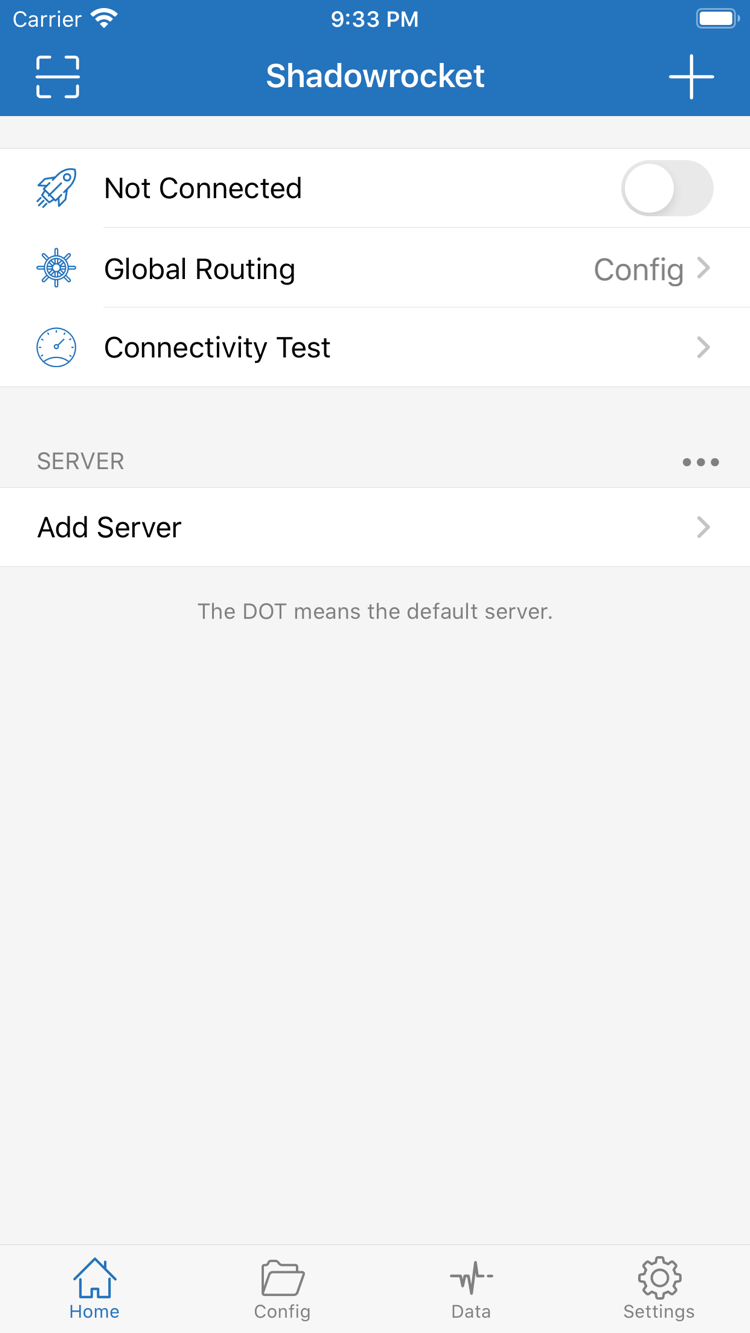
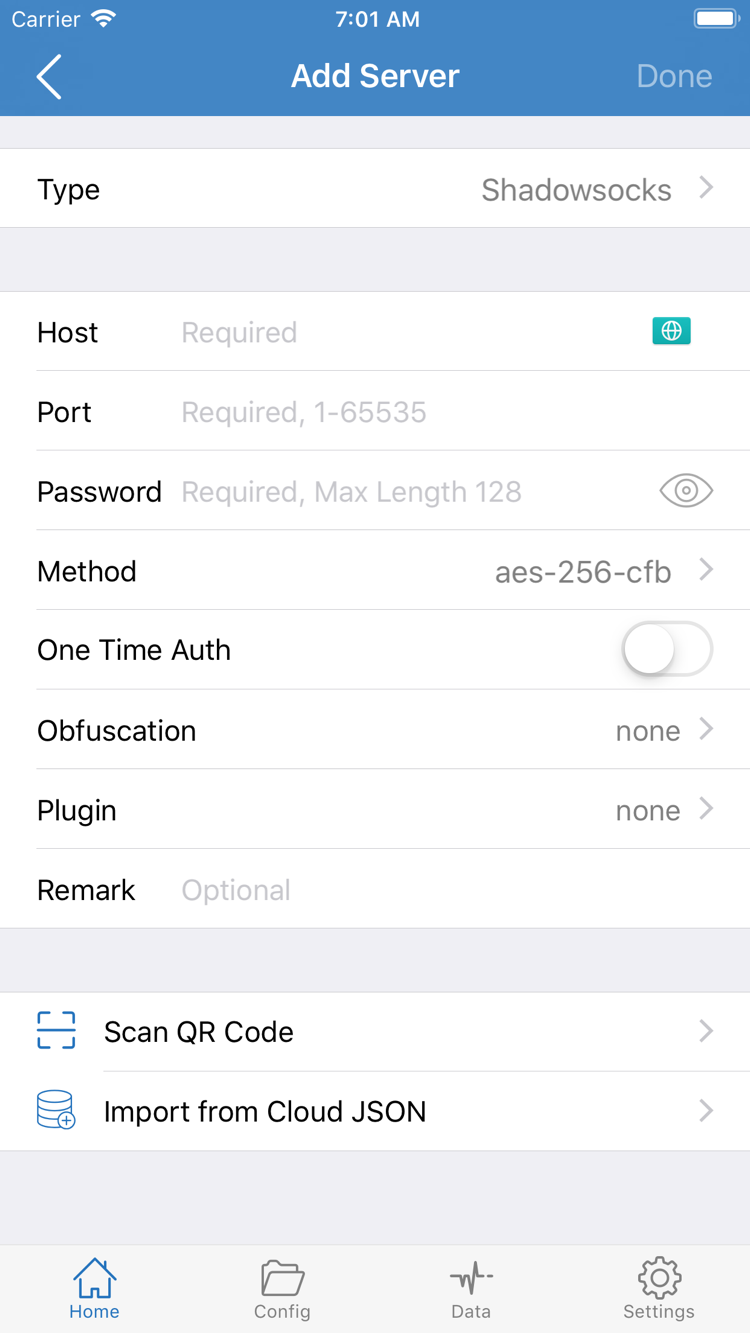
A single Apple Account purchase can be used on both iPhone and iPad. To reinstall on a new device, first make sure you’re signed in to the original purchasing account under Media & Purchases. Then open the App Store, tap your account icon, and go to Purchased or the current Apps list. Find Shadowrocket and tap the cloud download icon. If the original purchase is still available to restore, you don’t need to buy it again.
If Shadowrocket doesn’t appear in the list, check the purchase history on your original device to confirm which account made the purchase, then check the storefront on your new device. Signing in to the same iCloud account doesn’t necessarily mean Media & Purchases uses that account too. If you see a price instead of a redownload button, verify these details before proceeding; buying it again isn’t a restore step.
Restoring a purchase restores your right to download the client; it doesn’t bring back server details, subscriptions, or rules. Before resetting your old device, make sure you can retrieve your subscription or server details from your own provider. After installing on the new device, import your own details and check Global Routing. Confirm everything works before resetting the old device.
When moving to a new Mac, Windows, Android, or Linux device, return to downloads for every platform and choose the installer for the new device. There’s no need to copy the installer from your old computer. If the devices have different architectures, choose based on the new one. For updates, check the App Store on iPhone or iPad; on other platforms, download the appropriate installer from this site.
iPhone / iPad: A one-time $2.99 purchase on the US App Store; there’s no monthly client fee. The same purchasing account can use the purchase on eligible iPhone and iPad devices that meet the system requirements. For other storefronts, check the current App Store page for local currency, pricing, and availability.
Mac / Windows / Android / Linux: The client is free to download from this site. The Apple silicon and Intel Mac versions are in the same free tier; the only difference is processor architecture, not how you pay. Choose the installer that matches your Windows, Android, or Linux device as well.
Yes. Download the Mac, Windows, Android, or Linux version free from this site. The iPhone and iPad version is a one-time App Store purchase, priced at $2.99 in the US store.
Open About This Mac. If it lists a Chip and an Apple silicon model, choose the Apple silicon version. If it lists a Processor and Intel, choose the Intel version. Check the Mac you’re installing it on.
First, make sure the file came directly from this site’s download page. If it’s only a Microsoft SmartScreen app reputation warning and your device policy allows it, select More info, verify the filename, then select Run anyway. Stop the installation if Windows reports a threat.
Check the Apple Account signed in under Media & Purchases and its country or region. Shadowrocket isn’t available on the mainland China App Store. Your device’s language, location, and system region don’t change the storefront associated with your account.
The iPhone and iPad version is a one-time $2.99 purchase in the US store. If you use the original purchasing account and the app is still available for redownload, restore it from Purchased—no need to pay again. For Mac, Windows, Android, and Linux, download the appropriate installer again for free.
Yes. Check that your iPad meets the system requirements listed on the App Store page, then sign in with the same purchasing account under Media & Purchases and redownload the app from the App Store. The purchase is shared; client configuration must be transferred separately.
For help troubleshooting import or connection issues after installation, see Troubleshooting.